Updated: 2025-10-19
Open it in web browser, Don’t open in WeChat
Technical support is provided as a courtesy and is not included in your subscription.
Before contacting support, please visit the App Guide or FAQ for quick solutions.
Step 01 – Download
| Software Version | Clash Meta v2.11.20 |
|---|---|
| Official Website | Official Website | GitHub |
| iOS / iPhone | N/A |
| Android (arm) | Direct Download APK |
| Windows | N/A |
| MacOS / Linux | N/A |
Step 02 – Install
Android
Method 01 – Android PlayStore → Not Available
Method 02 – Android (install APK) → (click to open)
Android – Download APK
Download the .apk file from Download – Links section.
Note: Another app is installed in this video, but the method is same.
Android – Install
1 Open the File Browser App of your phone
File Browser App Names:
Files, My Files, File Browser, etc.
2 Go to “Download” folder in your storage & find “CMFA” file.
3 Click to open
4 Click “Install”
Method 03 – Android (install via WeChat file) → (click to open)
Android – Save APK file from WeChat
Open Clash Meta (CMFA.apk) file sent on WeChat
Click on three dots
Click save on Device
Note: Another app is installed in this video, but the method is same.
Android – Install
1 Open the File Browser App of your phone
File Browser App Names:
Files, My Files, File Browser, etc.
2 Go to Storage > Download >WeChat folder in your phone storage
& find “CMFA” file.
3 rename file and remove “.1” at the end
4 Click to open
5 Click “Install”
Step 03 – Basic Settings
Enable Unified Delay IMPOARTANT!!! → (click to open)
Basic Setup – Process
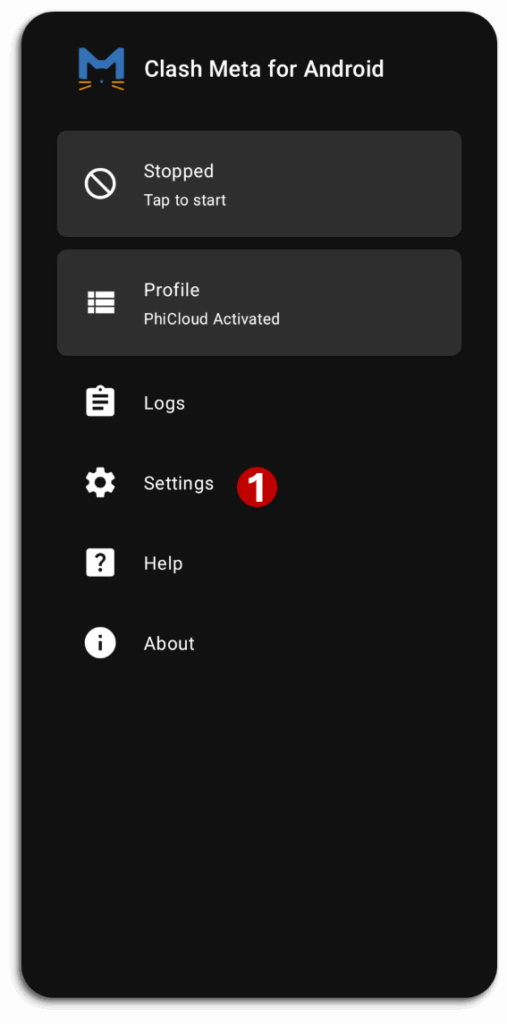
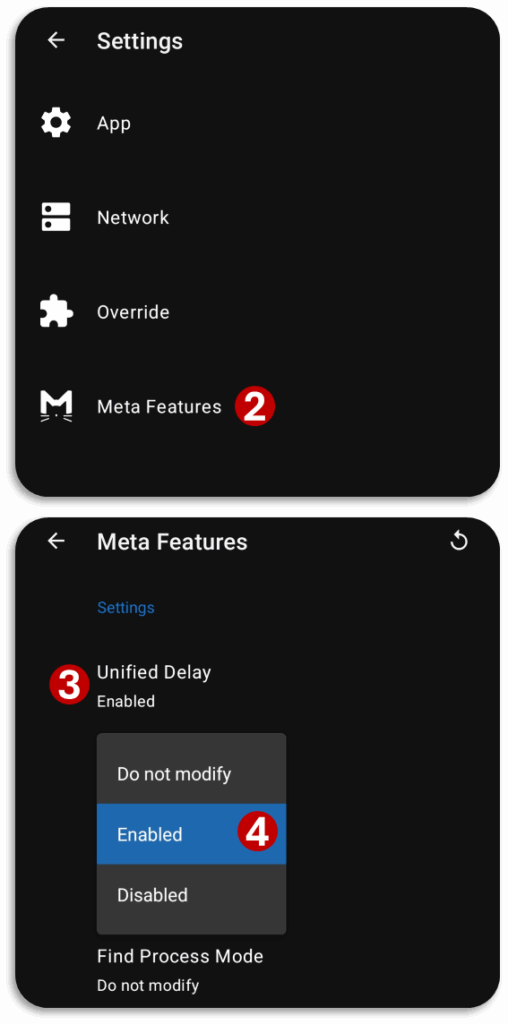
1 Open “Settings”
2 Open “Meta Features”
3 Click on “Unified Delay”
4 Select “Enabled”
Step 04 – Import Profile & Connect
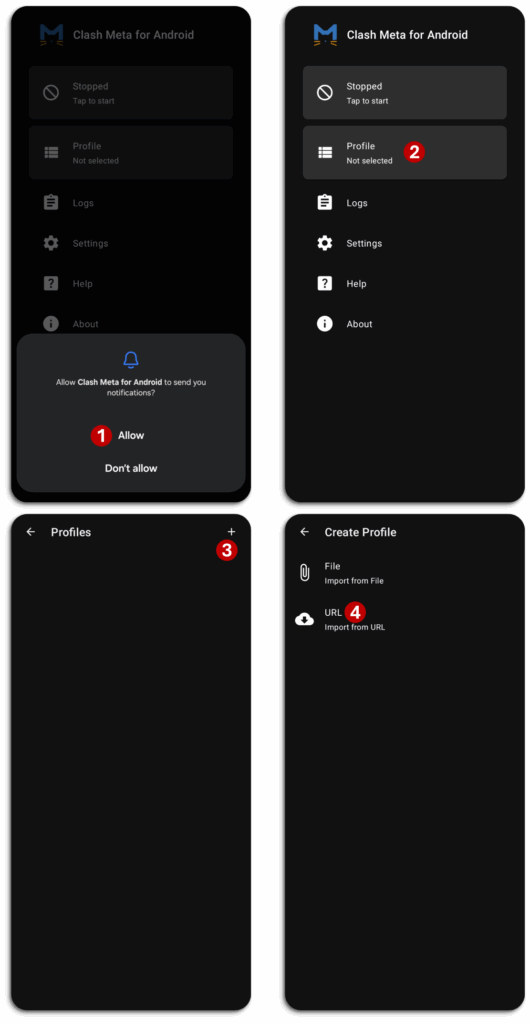
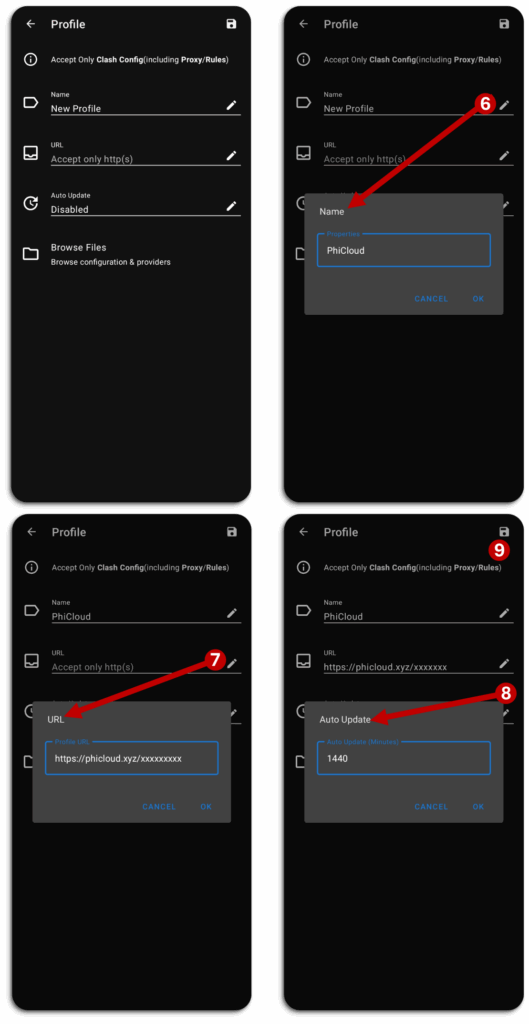
Import Profile → (click to open)
Connect → (click to open)
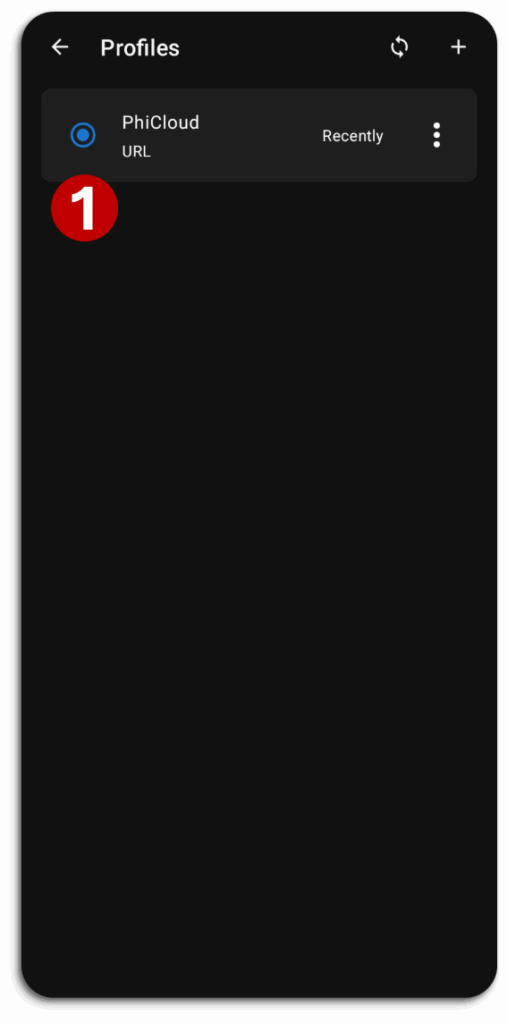
1 Click on Profile name to select
🔵 Blue dot will show selected profile
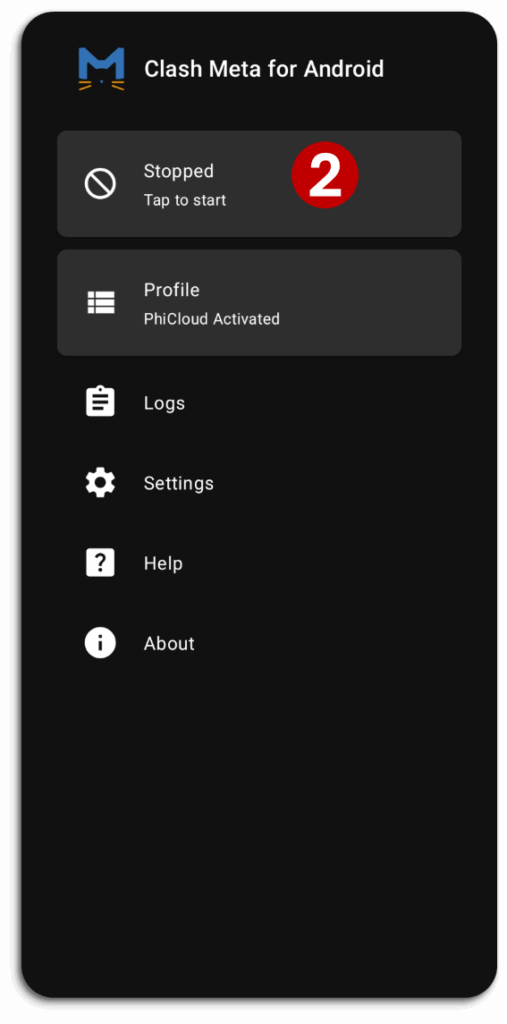
2 Click “Tap to start”
Step 05 – Refresh Servers
Refresh Servers → (click to open)
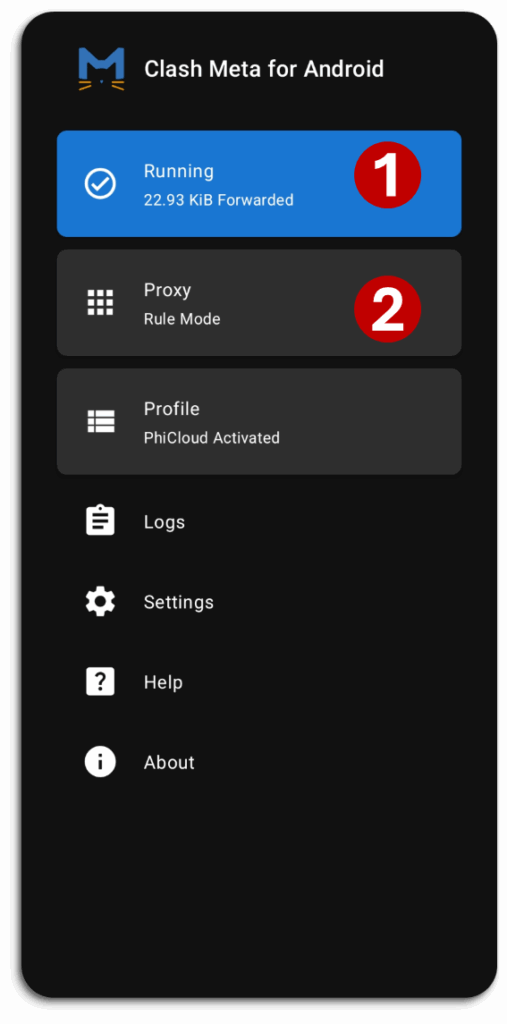
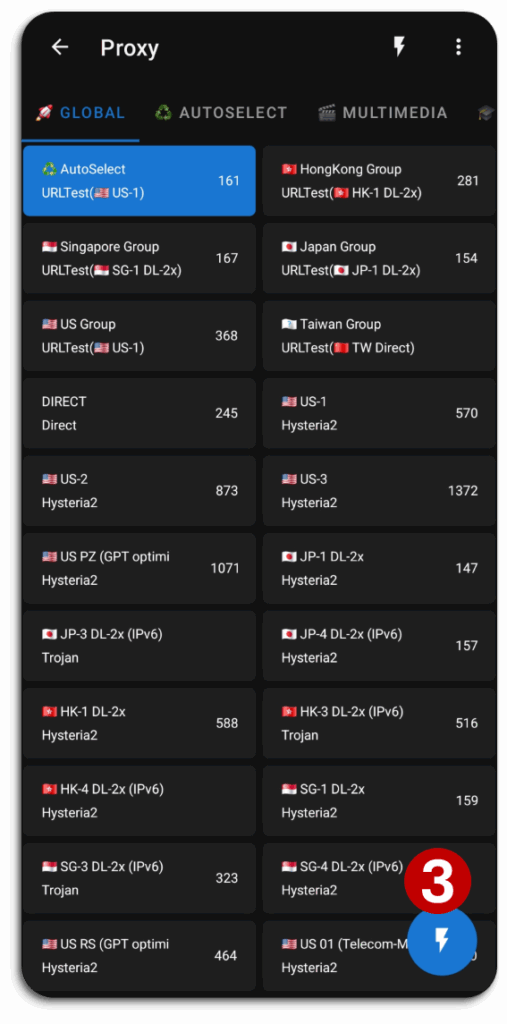
1 Connect
2 Open “Proxies” tab
3 Click on ⚡icon to refresh servers
If the profile is imported first time, must refresh servers.
Guide – Basic Knowledge
Change Server → (click to open)
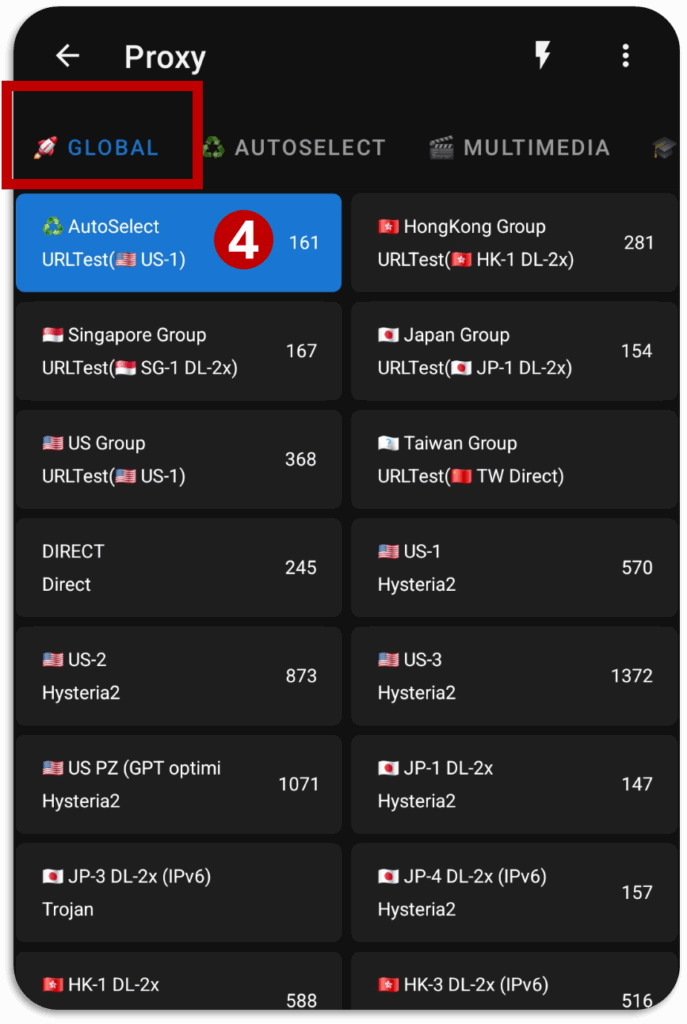
1 Connect Clash Meta and open Proxy
2 Click on ⚡ to refresh servers (Optional)
3 Open “🚀Global” Group
4 Select accordingly
♻️AutoSelect – Recommended
Country Groups – only connect with one country
Single Server – only connect with one server
Update Profile → (click to open)
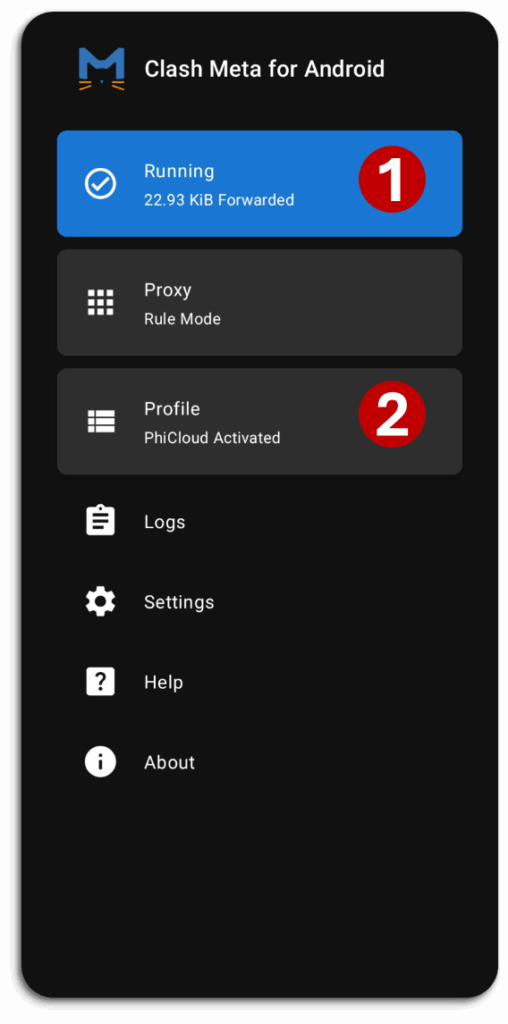
0 Connect
1 Open “Profile”
2 Click 🗘 to update
Don’t keep pressing 🗘 repeatedly & Wait for “Profile updated successfully” message.
Update Profile – CAN’T UPDATE PROBLEM → (click to open)
Use this method if:
Unable to Connect or All Servers show timeout
Connect with any Wi-Fi 🛜 (not mobile hotspot) to update.
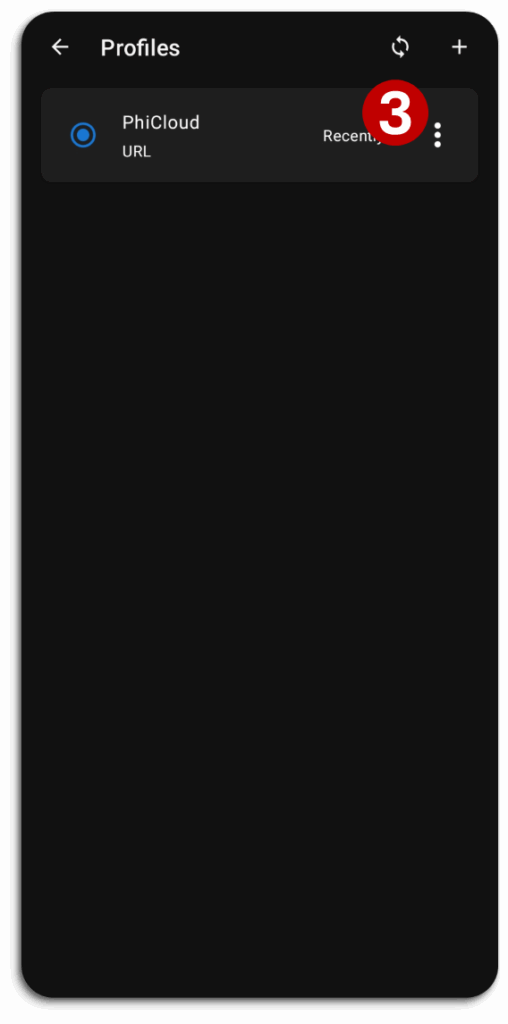
0 Disconnect
1 Open “Profile”
2 Click 🗘 to update
Don’t keep pressing 🗘 repeatedly & Wait for “Profile updated successfully” message.